

CS2 Stream Production for Solo Casters
How to produce a high-quality CS2 stream when you're handling everything alone — OBS configuration, overlay workflow, caster efficiency, and automation techniques.
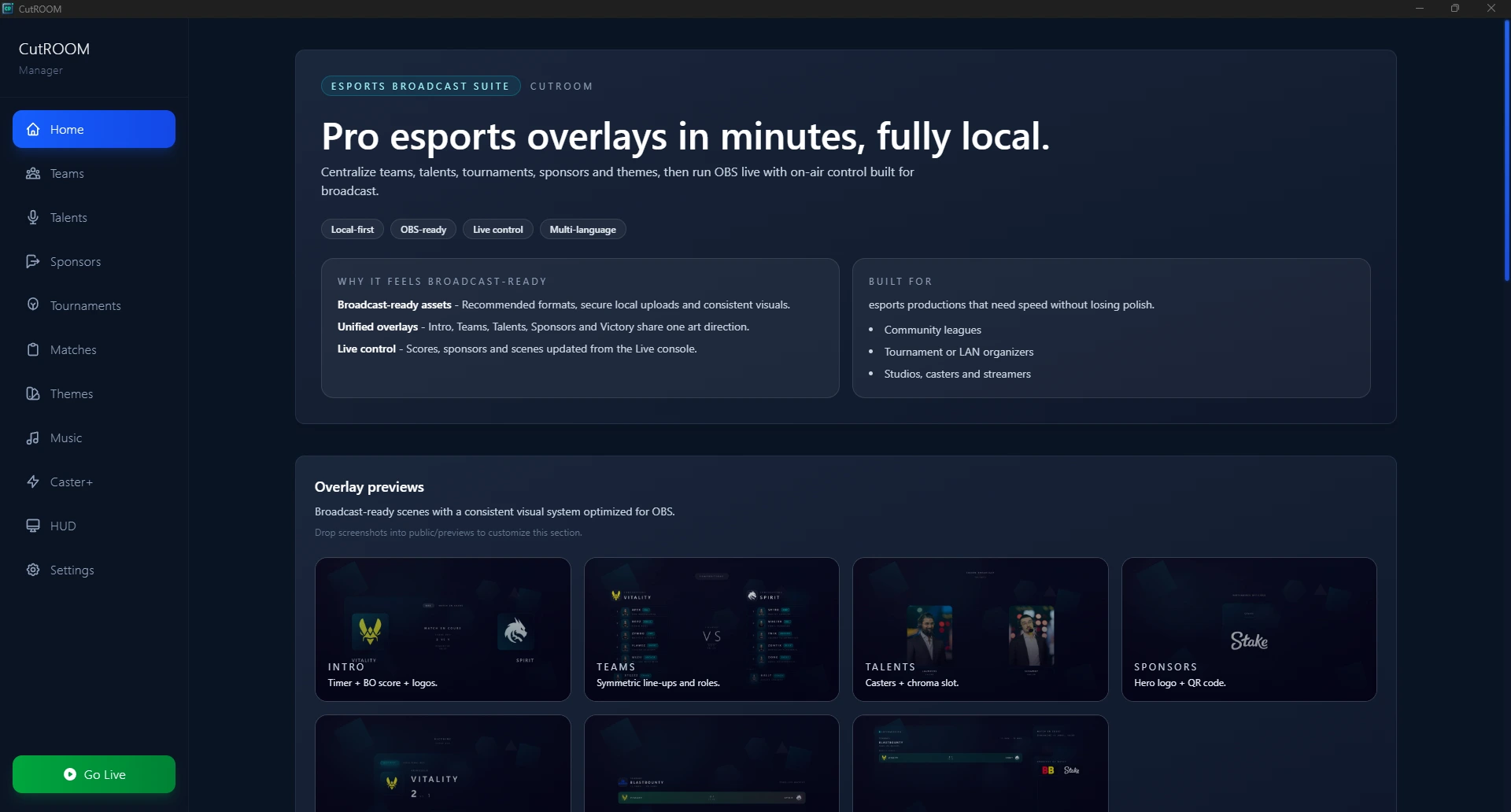
The Solo Caster Challenge
Solo casters face a unique challenge: they must simultaneously play or observe the game, provide commentary, manage the stream overlay, and engage with viewers — all at once. The key to making this work is aggressive automation and a setup so simple that it requires zero attention during the broadcast.
The Minimal Viable Solo Setup
The simplest functional solo CS2 broadcast setup:
- CutROOM running on the same PC as CS2 and OBS
- Two OBS scenes: "Live" (game capture + HUD + scoreboard browser sources) and "BRB" (intermission screen)
- Hotkey to switch between scenes (OBS Studio hotkeys or a Stream Deck)
- Microphone on a push-to-talk bind for commentary
With this setup, your only production task during the broadcast is switching scenes at half-time and match end. Everything else (GSI data, scoreboard updates, round timer) is automated by CutROOM.
Automating Overlay Management
CutROOM's GSI integration handles most overlay updates automatically:
- Scoreboard updates at round end — no manual trigger
- Half-time side swap is detected and reflected — no manual input
- Player health and economy update continuously — no manual data entry
- Round timer counts down from GSI data — no clock to manage
The only manual actions remaining: triggering the match intro (once per match), switching to intermission at half-time, and triggering the victory screen at match end. That's 3 scene changes per match.
OBS Settings for Solo PC Performance
Running CS2, OBS, and CutROOM on a single PC requires careful resource management:
- Use hardware encoding (NVENC or AMF) — offloads encoding from the CPU entirely
- CS2 FPS cap: Cap CS2 at 120–144 fps in CS2 settings to reduce GPU load on the encoder
- OBS resolution scale: Capture at 1920×1080 but downscale to 1280×720 for streaming if the PC struggles
- Browser source hardware acceleration: Enable in OBS Advanced settings
- Shutdown browser sources when not visible: Enable on your Intro and Victory browser sources
Commentary Techniques for Solo Casters
Without a colour analyst to play off, solo casters must fill both roles. Effective techniques:
- Read the radar out loud — Describe team positioning before engagement; it sets up the play for viewers
- Economy commentary — Explain buy decisions at the start of rounds; it fills silence and educates viewers
- Post-round analysis — Use the 15-second freeze time to recap what just happened
- React authentically — Genuine reactions to clutch plays are more engaging than forced energy
Building an Audience as a Solo CS2 Caster
The production quality of your stream is a filter for your audience. Viewers who stay are the ones who value good presentation — they are more likely to become regular viewers and subscribers. CutROOM's overlays signal to new viewers that you take your broadcast seriously, which reduces early churn.
Consistency matters more than production perfection. Stream on a regular schedule, maintain a consistent visual identity, and improve gradually. Professional-looking overlays combined with genuine commentary and regular output is the formula for growing a CS2 broadcast audience.
Start with the CS2 Overlay Setup Guide to get CutROOM running in under 10 minutes.
Ready to broadcast CS2 like a pro?
Join the tournament organizers and casters who run CutROOM every day.