

How to Broadcast CS2: A Complete Beginner Guide
Everything you need to set up a professional CS2 broadcast from scratch — PC configuration, OBS setup, overlay installation, and your first live stream.
What You Need to Start Broadcasting CS2
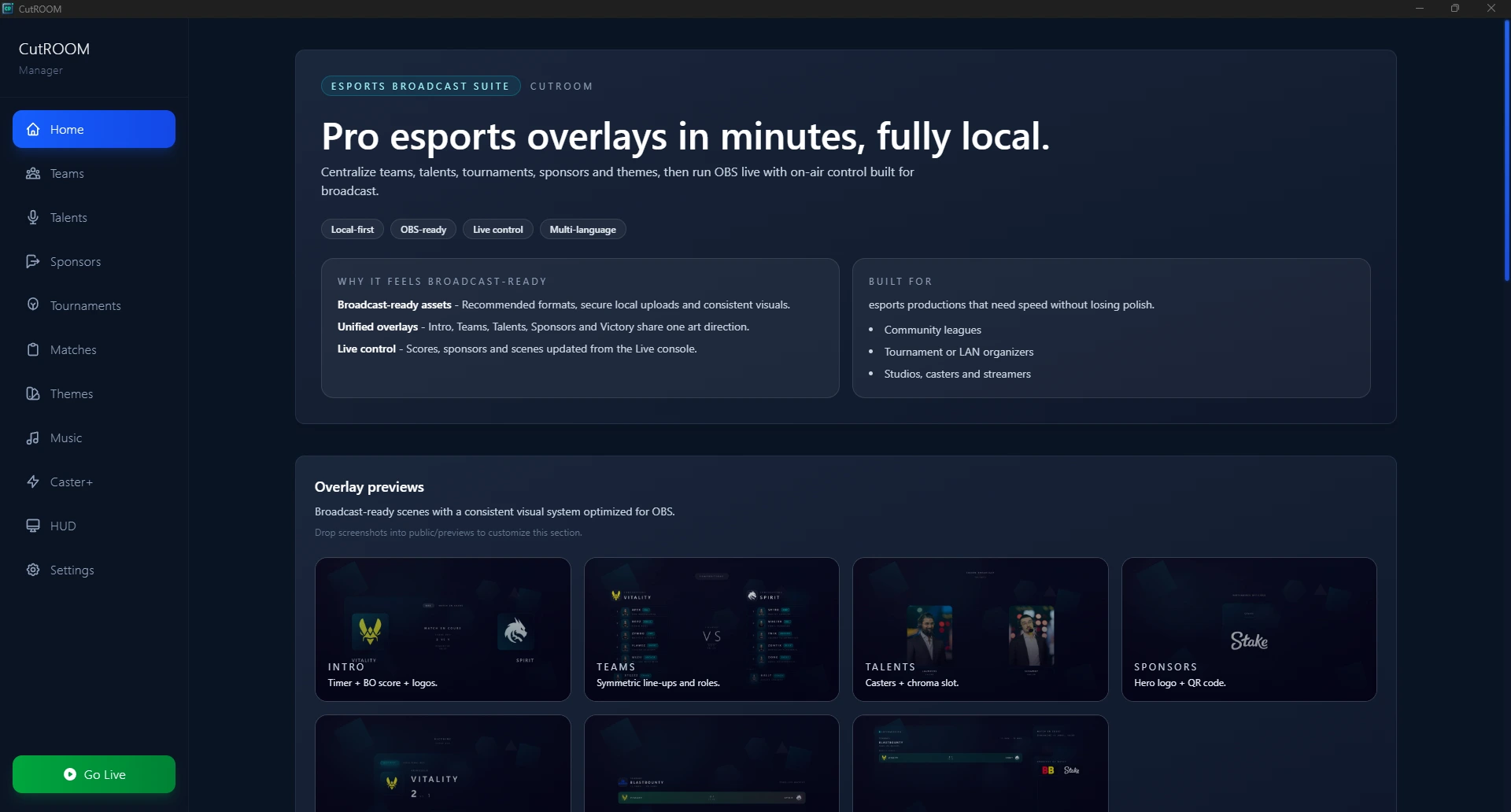
Broadcasting CS2 requires three things working together: a capable PC, streaming software (OBS), and overlay software (CutROOM) that connects to CS2's live data. Let's walk through each step.
Step 1: PC Requirements
For a smooth 1080p60 CS2 broadcast, your PC needs to handle CS2, OBS encoding, and CutROOM overlay rendering simultaneously. Recommended minimum specs:
- CPU: Intel Core i7 (12th gen+) or AMD Ryzen 7 (5000 series+)
- RAM: 16GB (32GB recommended for encoding-heavy workflows)
- GPU: GTX 1070 / RX 5700 or better (for hardware encoding)
- Storage: SSD for Windows and games (reduces CS2 loading stutter during stream)
- Internet: 10Mbps stable upload for 1080p60 stream at 6000 kbps
If your PC falls short of these specs, you can still broadcast at 720p60 or lower bitrate. CS2's low system requirements mean it runs well even when OBS is also active.
Step 2: Install and Configure OBS Studio
Download OBS Studio from obsproject.com. During first launch, the Setup Wizard will help you configure encoder settings. For CS2 broadcasting:
- Encoder: Use NVENC (NVIDIA) or AMF (AMD) for hardware encoding — much lower CPU load than x264
- Bitrate: 6000 kbps for Twitch (maximum), 8000–15000 kbps for YouTube
- Resolution: 1920×1080 output
- Frame rate: 60 fps
- Keyframe interval: 2 seconds
Create a new Scene in OBS and add a Game Capture source targeting CS2. Game Capture is preferred over Window Capture for CS2 as it captures the game at full frame rate without extra latency.
Step 3: Set Up CS2 Overlays with CutROOM
Subscribe to CutROOM (Caster plan for solo casters — €9.99/month), download and install the app, then:
- Activate your license using the key sent to your email
- Run the GSI configurator in CutROOM Settings — this creates the CS2 config file that sends live game data to CutROOM
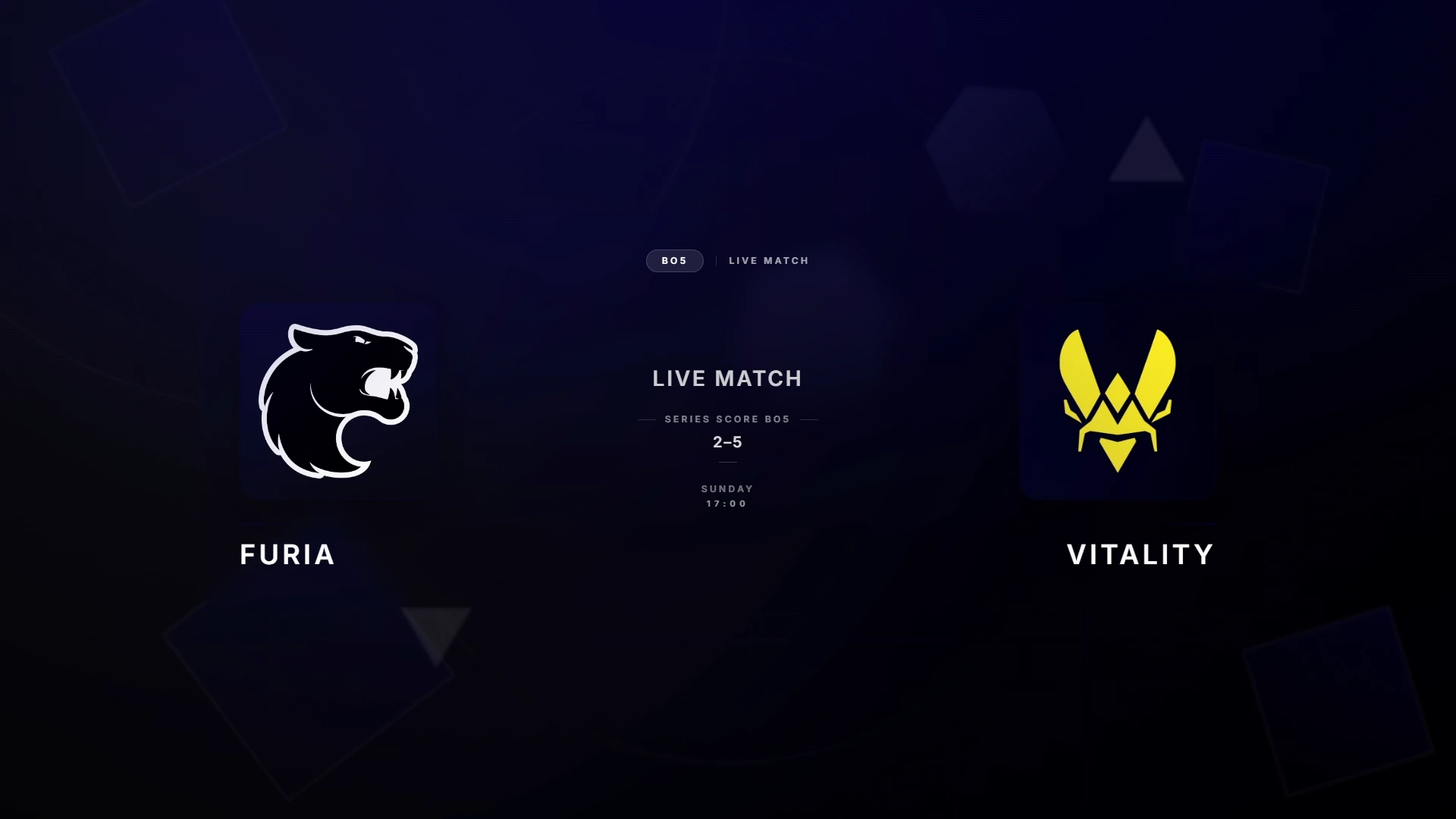
- Create a match in CutROOM with team names and logos
- Copy browser source URLs from the Overlay URLs panel
- Add browser sources to OBS at 1920×1080 with transparent background
Step 4: Configure Your Stream Platform
Twitch
Go to Twitch Creator Dashboard → Settings → Stream. Copy your Stream Key. In OBS, go to Settings → Stream, select Twitch, and paste your key. Set bitrate to 6000 kbps maximum (Twitch limit for standard partners and affiliates).
YouTube Live
Go to YouTube Studio → Go Live → Stream. Copy the Stream Key. In OBS, select YouTube and paste your key. YouTube supports up to 51000 kbps, but 8000–15000 kbps is standard for gaming content.
Step 5: Your Pre-Stream Checklist
- CutROOM is running and GSI status shows green
- Match data entered (team names and logos)
- OBS scenes set up and tested (press Start Recording to verify without going live)
- Audio levels checked — game audio, microphone, Discord/voice chat balanced
- Stream title and game category set on your platform
- Test stream run for 60 seconds to verify stable encoding
Step 6: Managing Your Broadcast Live
Once live, your workflow as a solo caster is:
- Start with the CutROOM Intro scene in OBS to present the match
- Switch to your Live scene when the knife round starts
- Use CutROOM's half-time Intermission scene at half-time
- Trigger the Victory scene after the match ends
- Cast the action, keep energy high, and engage with chat between rounds
Common Beginner Mistakes
- Not testing before going live — Always record a 2-minute test to verify everything works
- Encoding too high a bitrate — Causes dropped frames; stay within your platform's recommended limits
- Forgetting to restart GSI after a CS2 update — CS2 updates sometimes reset config files
- No audio monitoring — Use headphones to hear what viewers hear before going live
Next Steps
Once you are comfortable with the basic broadcast workflow, explore the CS2 Broadcast Setup guide for multi-PC configurations and tournament production setups. For observer technique, read the CS2 Observer Guide.
Ready to broadcast CS2 like a pro?
Join the tournament organizers and casters who run CutROOM every day.