

CS2 Overlay Setup: From Zero to Live in 10 Minutes
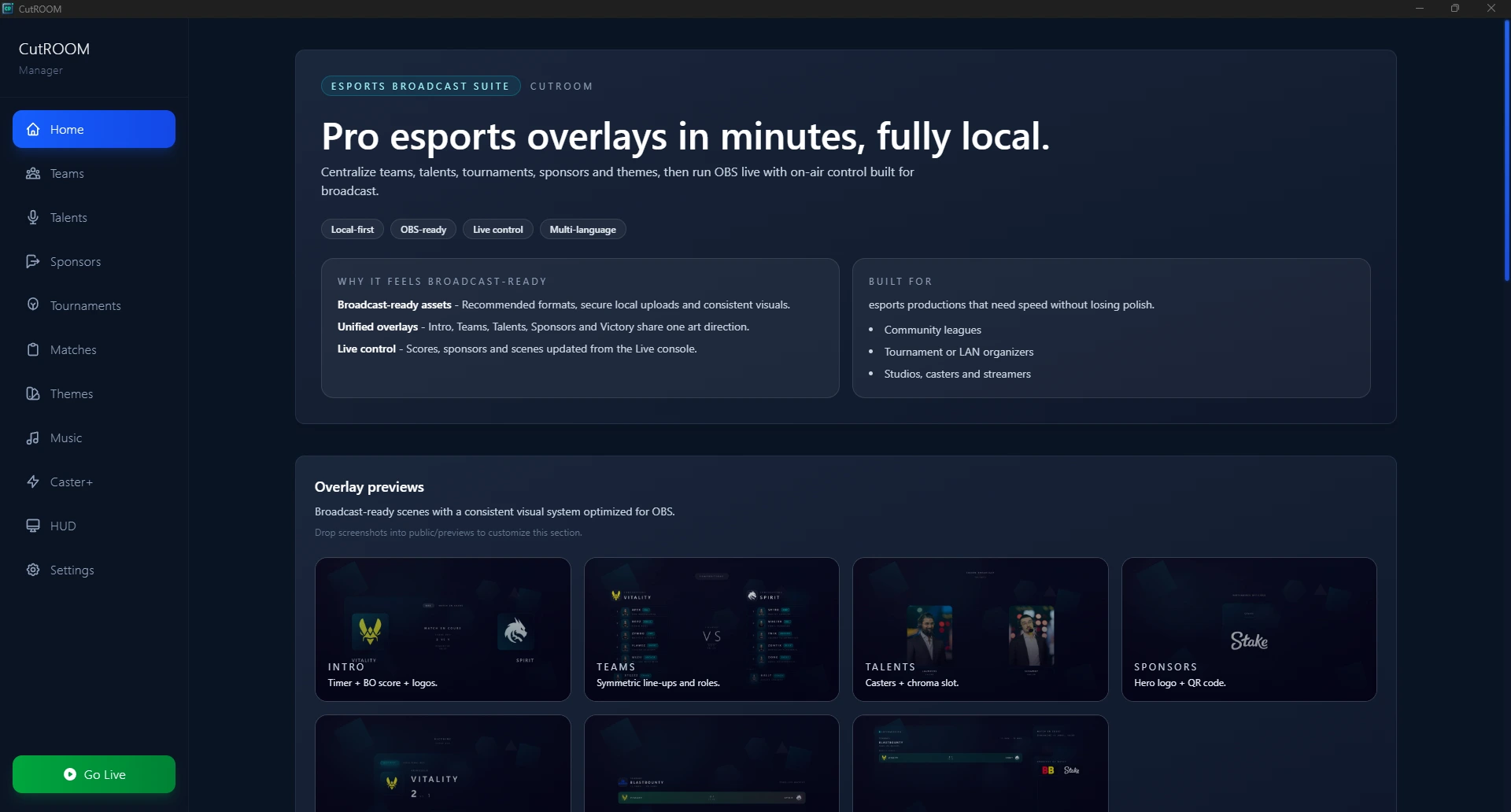
A complete step-by-step guide for setting up CutROOM CS2 overlays. Covers installation, GSI configuration, OBS browser source setup, and your first live broadcast.
Before You Begin
To set up CutROOM CS2 overlays you need:
- A Windows PC running CS2 (same machine as your broadcast, or network access)
- OBS Studio installed (version 28.0 or later recommended)
- A CutROOM subscription (Caster at €9.99/mo or Caster+ at €29.99/mo)
- CS2 installed and able to launch in your Steam library
Step 1: Install CutROOM
After subscribing, you receive a license key by email and a download link to the CutROOM installer. Run the installer on your broadcast PC and follow the setup wizard. CutROOM installs to your user applications directory and does not require administrator privileges for normal operation.
At first launch, CutROOM will ask you to activate your license. Enter the license key from your email. Activation requires an internet connection for the first validation — after that, CutROOM operates offline with a grace period of up to 7 days between license checks.
Step 2: Configure CS2 GSI
Game State Integration (GSI) is how CutROOM receives live data from CS2. CutROOM includes an automatic GSI configurator that handles this for you:
- In CutROOM, go to Settings → Game Integration
- Click Auto-configure GSI
- CutROOM will locate your CS2 installation folder automatically
- It creates the required
gamestate_integration_cutroom.cfgfile in CS2'scfgfolder - Click Test GSI Connection — launch CS2 and the status should turn green
Manual GSI setup: If auto-configure fails (common with custom CS2 install locations), navigate to your CS2 folder manually: Steam/steamapps/common/Counter-Strike Global Offensive/game/csgo/cfg/ and place the provided .cfg file there.
Step 3: Create Your First Match
In CutROOM, click New Match and enter:
- Team 1 name and logo
- Team 2 name and logo
- Map selection
- Tournament or event name (optional)
CutROOM auto-populates team colours, but you can customise them. Player roster data is pulled from CS2 GSI once the match starts — you do not need to enter individual player names manually.
Step 4: Add Overlays to OBS
In CutROOM, navigate to Overlay URLs. You will see a URL for each available scene. For a basic setup, copy the following URLs:
- HUD — Bottom-screen player info and round timer
- Scoreboard — Top-screen round score bar
- Intro — Match presentation screen
In OBS Studio:
- Add a new Scene called CS2 Live
- Add your game capture or window capture source
- Add a Browser Source for the HUD URL (1920×1080, transparent background)
- Add a Browser Source for the Scoreboard URL (1920×1080, transparent)
- Add separate Scenes for Intro, Intermission, and Victory with their respective browser sources
Step 5: Test Before Going Live
Launch CS2 and start a practice server or workshop map. Verify:
- GSI status shows green in CutROOM
- Round timer in the HUD counts down correctly
- Scoreboard updates when a round ends
- Player health changes when you take damage (in practice)
Once all checks pass, your overlay setup is complete. Start a real match and your overlays will populate with live data automatically.
Troubleshooting Common Issues
GSI not connecting
Ensure the .cfg file is in the correct CS2 folder and CS2 has been restarted after placing it. Some antivirus software blocks local HTTP servers — add CutROOM to your antivirus exceptions.
Overlays not showing in OBS
Verify CutROOM is running before launching OBS. The browser source URL uses localhost which only works when CutROOM's local server is active.
Overlays showing but data not updating
Check that CS2 is the active window and a match is in progress (not just the main menu). GSI data is only sent during active game sessions.
Next Steps
With your basic setup working, explore the full broadcast workflow in the CS2 Broadcast Setup guide — covering multi-scene management, hotkey configuration, and sponsor display setup.
Ready to broadcast CS2 like a pro?
Join the tournament organizers and casters who run CutROOM every day.