

Complete CS2 Overlay Guide
The definitive reference for CS2 broadcast overlays. From GSI data flow to OBS scene management — everything you need to know to run professional CS2 overlays.
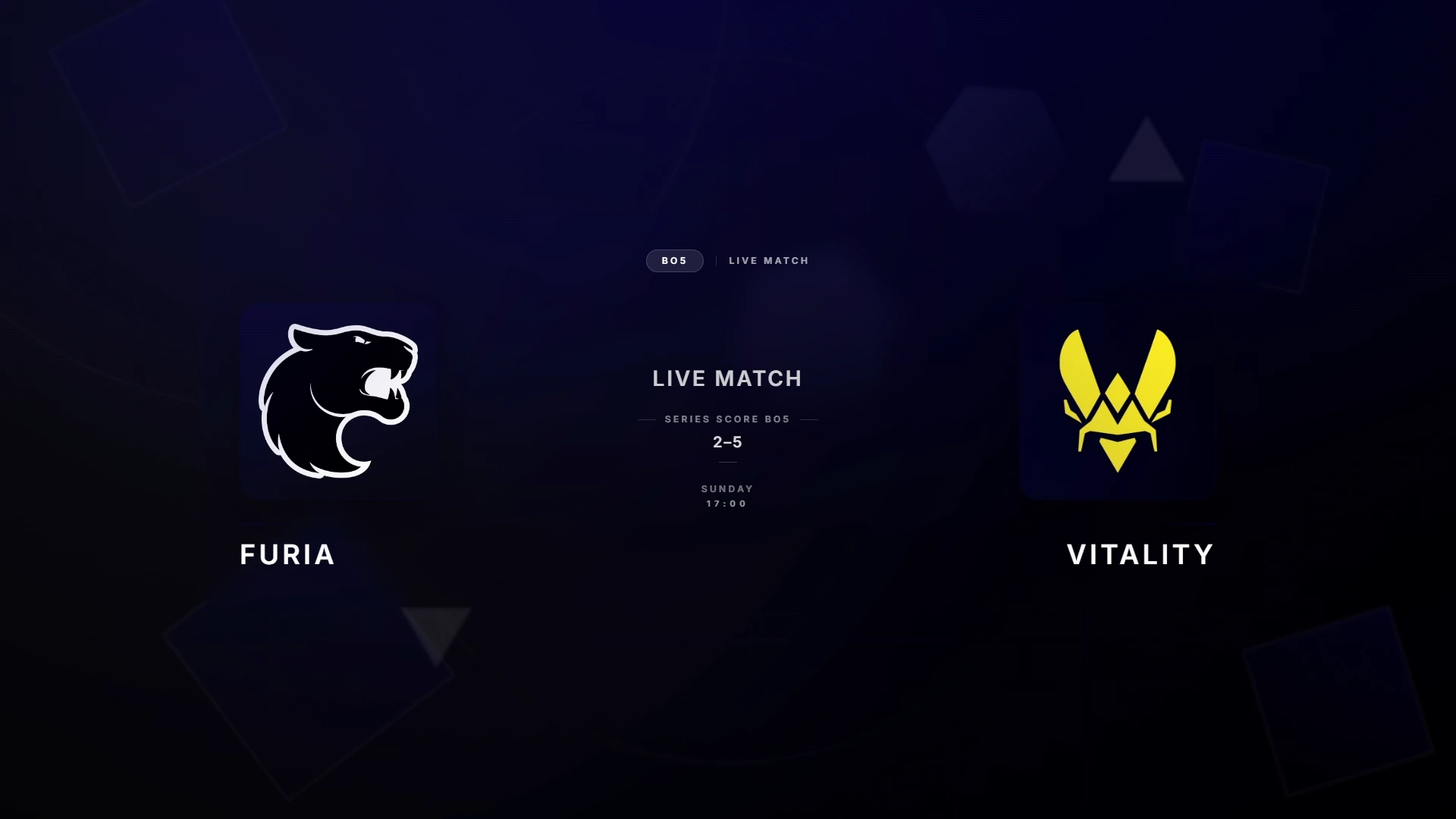
Understanding CS2 Game State Integration (GSI)
Game State Integration is a built-in CS2 system that broadcasts live match data to a configured HTTP endpoint. When a GSI config file is placed in your CS2 cfg folder, CS2 starts sending JSON payloads to the specified URL every time a game event occurs — round starts, kills, health changes, economy updates, and more.
The GSI payload contains a rich set of data:
round.phase— Current round phase (freezetime, live, over)round.bomb— Bomb state (carried, dropped, planted, defused, exploded)player.state— Health, armor, helmet, flashed, burning statusplayer.weapons— Full weapon inventory with ammo countsallplayers— Data for all 10 players simultaneously (spectator mode only)map.team_ct / map.team_t— Team names, round score, timeout countmap.phase— Match phase (warmup, live, gameover)
CutROOM receives this JSON stream, maintains a live match state model, and pushes updates to all overlay browser sources via WebSocket. This means overlays update in near-real-time with sub-100ms latency on a local network.
GSI Configuration File
The GSI config file is a plain text file placed in the CS2 cfg folder. CutROOM auto-generates and installs this file during setup. A typical config looks like:
"CutROOM GSI"
{
  "uri" "http://localhost:31337/"
  "timeout" "5.0"
  "heartbeat" "30.0"
  "auth" { "token" "YOUR_TOKEN" }
  "data"
  {
    "provider" "1"
    "map" "1"
    "round" "1"
    "player_id" "1"
    "player_state" "1"
    "player_weapons" "1"
    "allplayers_id" "1"
    "allplayers_state" "1"
    "allplayers_weapons" "1"
    "allplayers_match_stats" "1"
    "bomb" "1"
  }
}
How Overlays are Rendered
CutROOM overlays are web applications — HTML, CSS, and JavaScript — running in the browser renderer built into OBS. They connect to CutROOM's local WebSocket server and receive state updates in real time. When a round ends, for example, CutROOM pushes a round_end event, and the scoreboard overlay animates the new score into place.
This architecture means overlays can use any modern web technology: CSS animations, SVG graphics, WebGL if needed, and fully custom fonts. The visual quality ceiling is as high as skilled web design can go.
OBS Browser Source Mechanics
OBS's browser source uses the Chromium Embedded Framework (CEF) — the same rendering engine as Google Chrome. It supports all modern web standards including CSS Grid, CSS animations, WebSockets, and ES2022 JavaScript.
Key OBS browser source settings for CutROOM overlays:
- Width / Height: Match your stream resolution (1920×1080 for HD)
- Use custom frame rate: Set to 60fps for smooth animations
- Shutdown source when not visible: Enable to save CPU when the scene is not active
- Refresh browser when scene becomes active: Disable — CutROOM maintains state via WebSocket, a reload is not needed
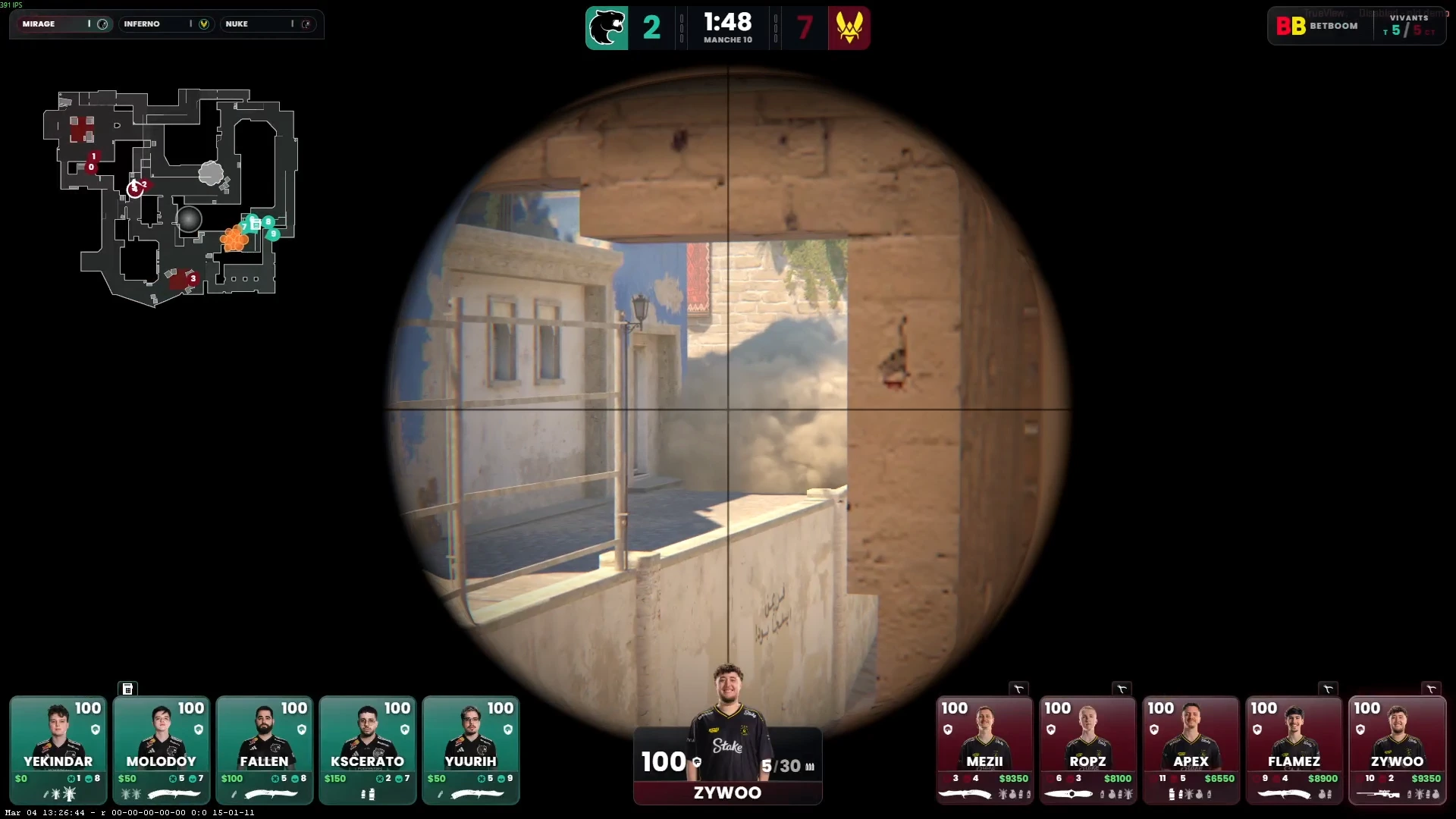
Scene Management Strategy
A well-organised OBS scene collection makes live production significantly easier. The recommended structure for a CutROOM broadcast:
- One OBS source per CutROOM overlay — Do not combine multiple overlays into a single browser source
- Group related sources — Use OBS Groups to show/hide HUD + scoreboard together
- Use scene transitions — CutROOM overlays support fade and cut transitions natively
- Lock positioned sources — Once positioned, lock browser sources in OBS to prevent accidental moves
Overlay Theming System
CutROOM overlays use a CSS custom properties (variables) system for theming. The dashboard writes theme values to a config that the overlays read on connection. Variables include:
--color-ct— CT team accent colour--color-t— T team accent colour--color-primary— Primary brand colour for frames and highlights--font-primary— Main overlay font family--logo-ct/--logo-t— Team logo URLs
Changes to theme variables propagate to all open overlays instantly via WebSocket, without requiring a browser source reload in OBS.
Performance Optimisation
Even with multiple browser sources active, CutROOM overlays are designed to stay under 5% total CPU overhead on a modern broadcast PC. Key performance guidelines:
- Enable hardware acceleration in OBS (Settings → Advanced)
- Use the Shutdown source when not visible option on scene-specific overlays
- Avoid running more than 6 simultaneous browser sources
- Keep OBS encoder settings at or below 6000 kbps for Twitch to leave headroom for browser rendering
Troubleshooting and Maintenance
The most common overlay issues and their solutions:
- Overlay not receiving data: Verify GSI config file path, ensure CutROOM is running before CS2 starts
- Overlay frozen / not animating: Right-click the browser source in OBS and select Refresh
- Wrong team names showing: Update match data in CutROOM dashboard — changes push to overlays automatically
- Overlay visible but completely white: The browser source is loading before CutROOM's local server is ready — add a 5-second startup delay in OBS auto-start scripts
For the full broadcast production workflow, see the CS2 Broadcast Production Guide.
Ready to broadcast CS2 like a pro?
Join the tournament organizers and casters who run CutROOM every day.