

CS2 Overlay for OBS Studio
Add live CS2 overlays to OBS in minutes using browser sources. CutROOM generates ready-to-paste browser source URLs for every overlay scene — no plugins, no coding required.
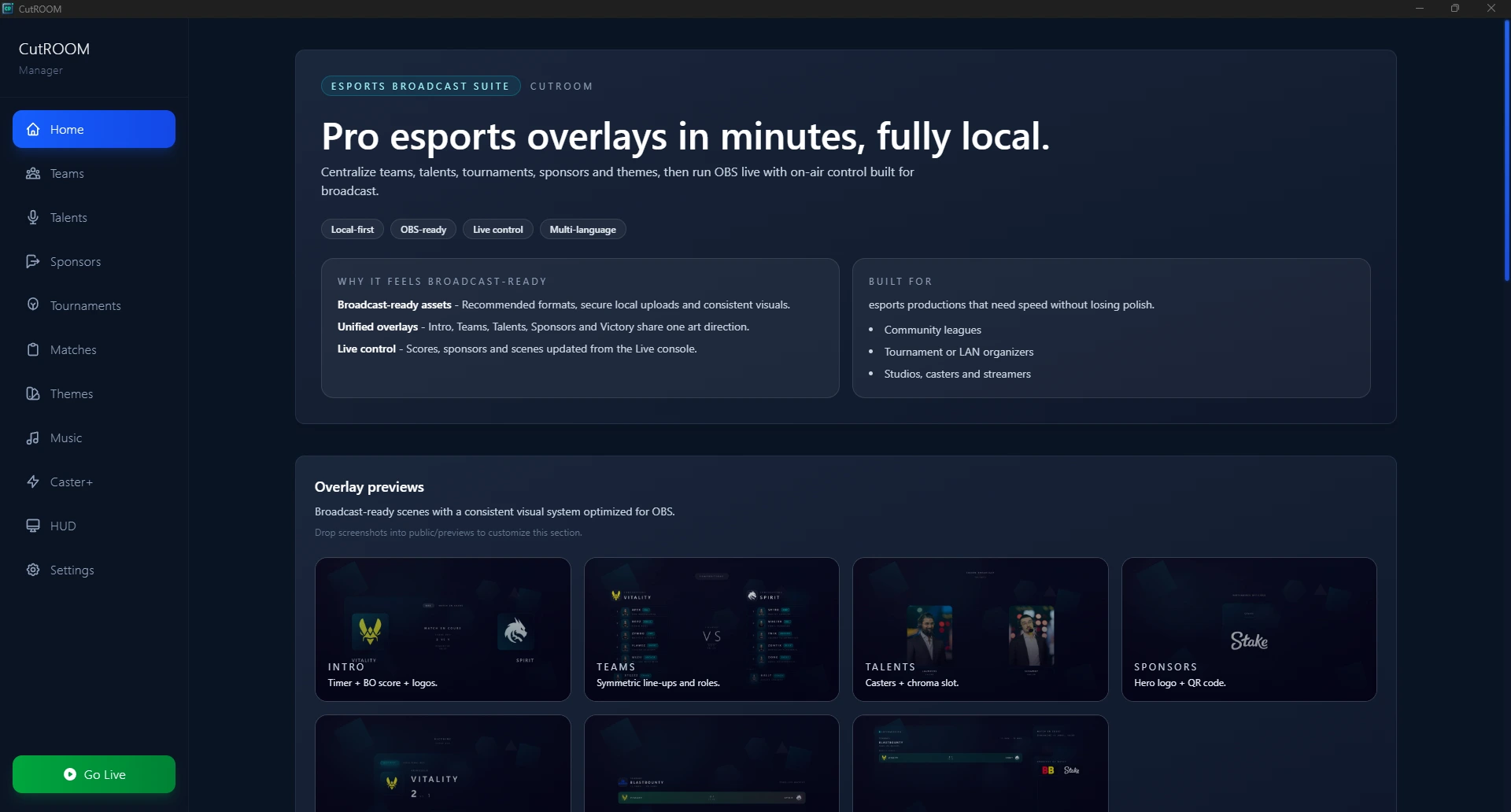
How CutROOM Works with OBS
OBS Studio supports Browser Sources — a built-in feature that renders a web page as a transparent overlay layer inside OBS. CutROOM runs a local web server on your broadcast PC and exposes each overlay scene as a URL. You paste those URLs into OBS as Browser Sources, and your overlays appear live over your game capture.
This approach requires no OBS plugins, no extra software, and no technical configuration beyond adding a Browser Source. It works with every version of OBS Studio from 28.0 onwards.
Step-by-Step: Adding CutROOM to OBS
- Install and launch CutROOM on your broadcast PC
- Complete the license activation and GSI setup (automated by the app)
- In the CutROOM dashboard, navigate to the Overlay URLs section
- Copy the browser source URL for the scene you want to add
- In OBS, click the + button in the Sources panel and select Browser
- Paste the CutROOM URL into the URL field
- Set Width to 1920 and Height to 1080
- Check Shutdown source when not visible for optimal performance
- Click OK — your overlay is live
Important: Make sure OBS and CutROOM are running on the same PC. The browser source URL uses localhost, so it will not work if OBS is on a different machine than CutROOM.
OBS Scene Collection Setup
The recommended approach is to create a dedicated OBS scene collection for your CS2 broadcast. Within that collection, create one OBS Scene per CutROOM overlay scene:
- CS2 — Intro — Game capture + CutROOM Intro browser source
- CS2 — Live — Game capture + HUD browser source + scoreboard browser source
- CS2 — Intermission — Static camera or loop + Intermission browser source
- CS2 — Victory — Game capture + Victory browser source
With this setup, switching between broadcast phases is a single hotkey in OBS.
Performance in OBS
CutROOM overlays are designed to be lightweight. The browser renderer inside OBS handles all overlay rendering, keeping your main OBS encoder thread free. On a typical broadcast PC (Intel i7 or AMD Ryzen 7, 16GB RAM), CutROOM browser sources add under 3% CPU load to OBS.
For best performance, enable hardware acceleration in OBS Settings → Advanced → Browser Source Hardware Acceleration.
Multiple Overlays in One Scene
You can stack multiple CutROOM browser sources in a single OBS scene. A common setup for live CS2 coverage uses three simultaneous browser sources:
- HUD (bottom of screen, always visible)
- Scoreboard (top bar, always visible)
- Kill feed or player stats widget (top right, conditionally shown)
Each source can be independently toggled on/off using OBS source visibility or CutROOM's global hotkeys.
Streamlabs and Other Broadcast Software
CutROOM browser sources work with any broadcast software that supports HTML browser sources — including Streamlabs, XSplit, and vMix. The setup process is identical: add a browser source and paste the CutROOM URL.
Complete Setup Guide
For a full end-to-end setup walkthrough — including GSI configuration, network settings, and OBS scene organisation — see the CS2 Overlay Setup Guide.
Ready to broadcast CS2 like a pro?
Join the tournament organizers and casters who run CutROOM every day.