

CS2 HUD Overlay for Broadcast
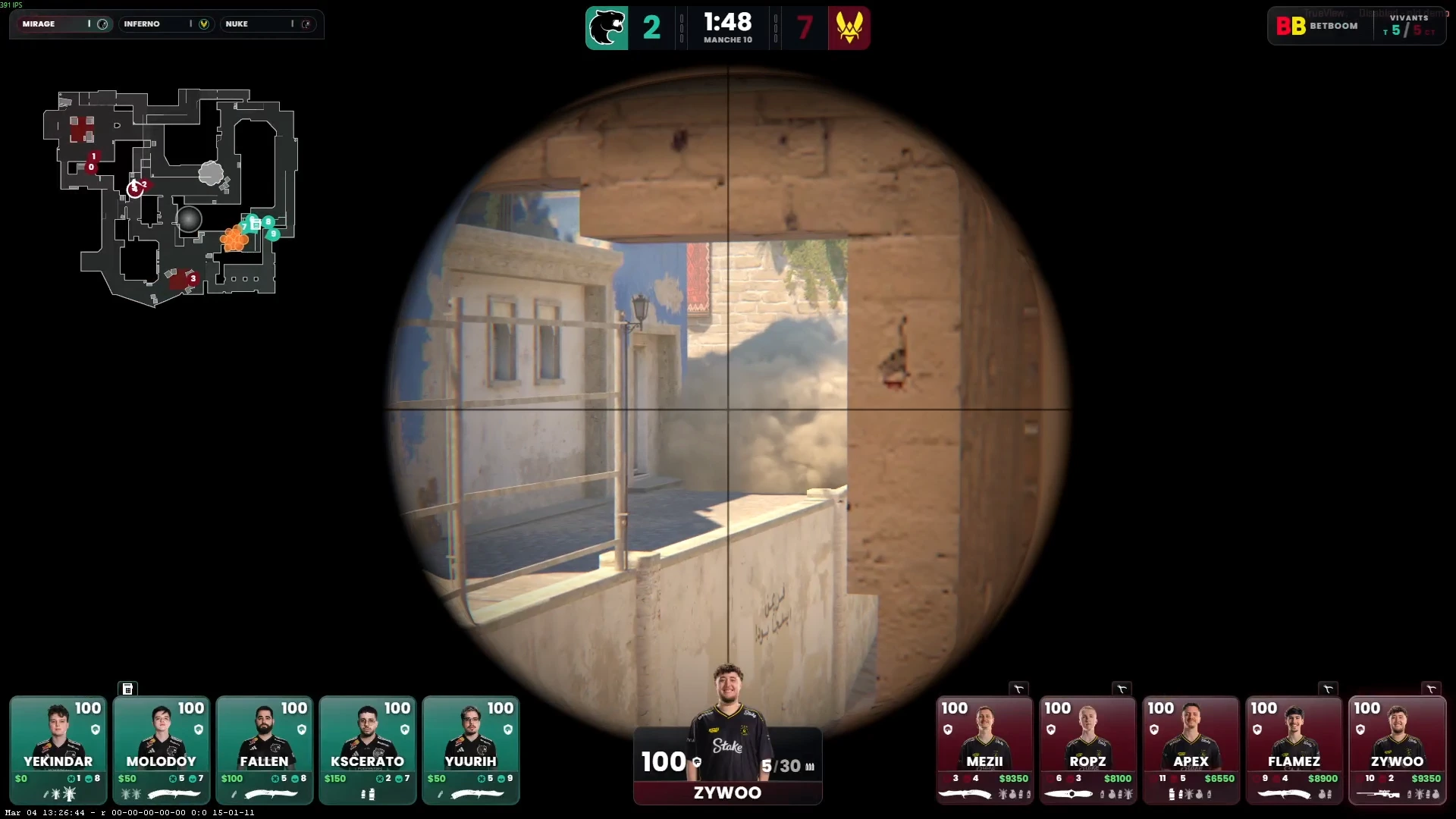
A professional in-game HUD for CS2 broadcasts. Shows live player health, armor, ammo, economy, bomb status and round timer — all pulled from CS2 GSI in real time.
What is a CS2 HUD Overlay?
A CS2 HUD overlay is a graphical layer displayed over a CS2 game capture that shows live match information — player health, armor, ammo count, current weapon, grenade inventory, economy, and bomb/defuse status. Unlike the default in-game HUD visible only to the player, a broadcast HUD is designed for viewers watching on stream or a big screen.
CutROOM's CS2 HUD is purpose-built for broadcast. It reads data from CS2 Game State Integration (GSI) every tick and renders a clean, animated HUD that communicates everything a viewer needs to follow the action.
What the CutROOM HUD Displays
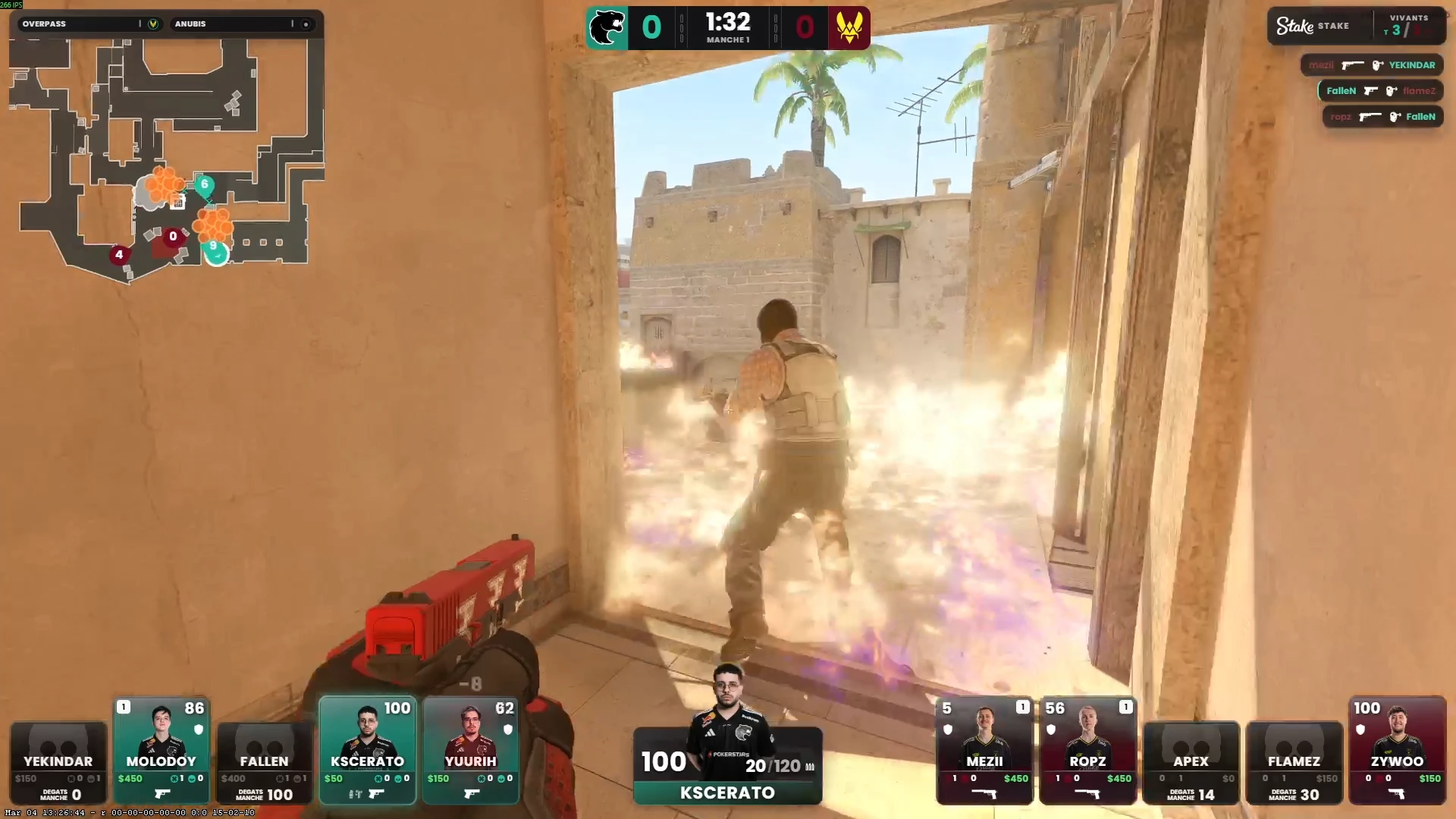
- Player health and armor — Live values with visual warning states at low HP
- Active weapon + ammo — Current weapon name, clip size, and reserve ammo
- Grenade inventory — Flash, smoke, HE, molotov/incendiary, decoy indicators
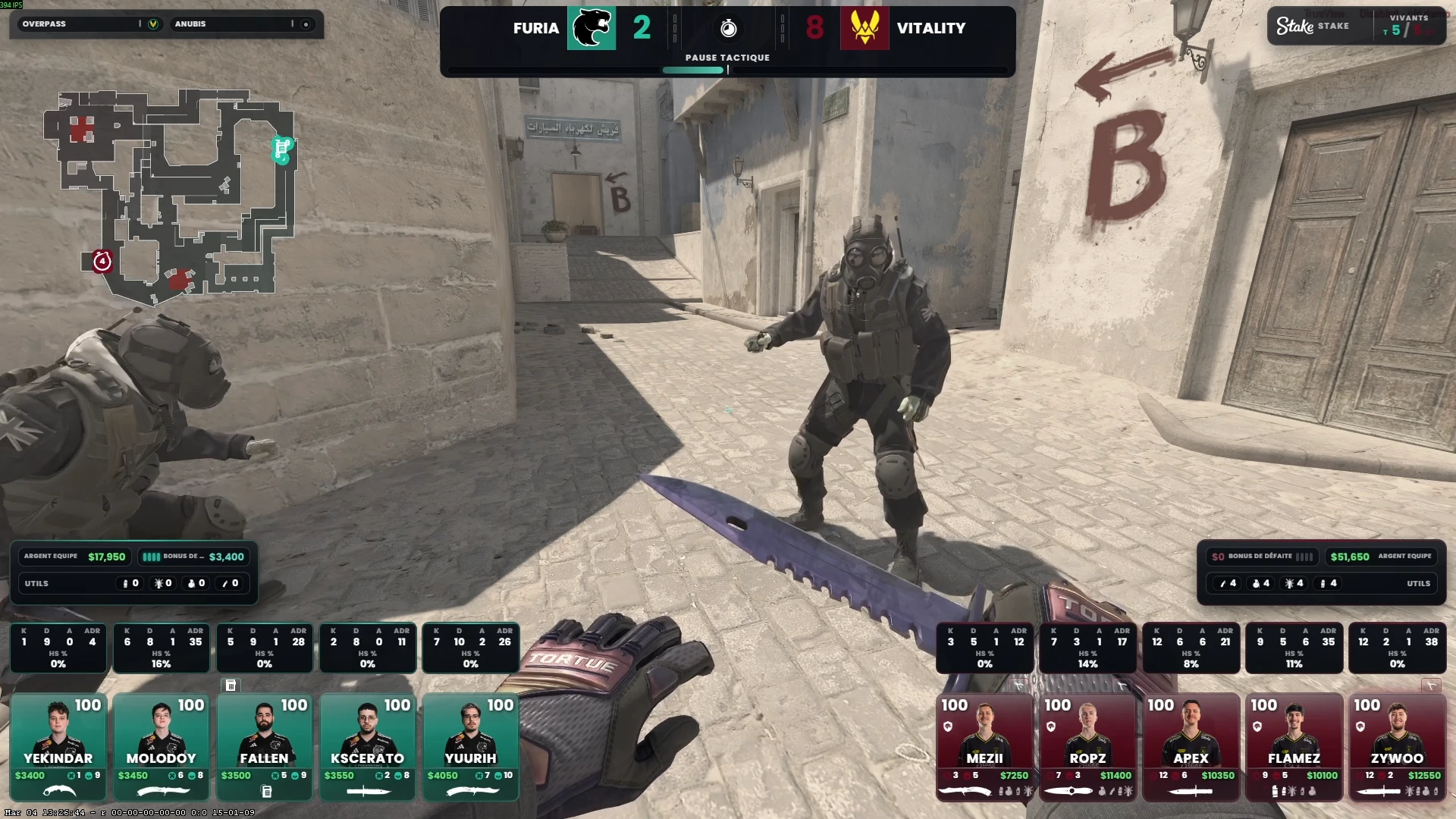
- Economy — Player cash balance and equipment value
- Round timer — Countdown with bomb planted / defuse state
- Kill feed — Recent eliminations with weapon icons
- Score bar — CT vs T round score always visible
HUD Variants Included
CutROOM ships with multiple HUD layout variants to match different broadcast contexts:
- Standard HUD — Full-width bottom bar layout used in most productions
- Compact HUD — Minimal layout for 1080p streams with limited overlay space
- Timer HUD — Focused round-timer and bomb-state widget for tactical coverage
- Win HUD — End-of-round summary with round winner and kill recap
All variants read from the same GSI data source, so switching between them requires no reconfiguration.
CS2 HUD vs Default In-Game HUD
The default CS2 in-game HUD is optimised for the player's own perspective. It does not scale well to broadcast, lacks team-wide visibility, and cannot be customised for branding purposes. A broadcast HUD like CutROOM's is designed specifically for the observer and viewer perspective, showing aggregate team information that the spectating camera needs.
CS2 also includes a built-in observer overlay, but it has no customisation options and cannot integrate sponsor branding or tournament themes. CutROOM's HUD gives you full control over colours, fonts, logo placement, and layout.
Observer HUD Integration
CutROOM's HUD is tightly integrated with the observer workflow. When the observer switches player perspectives, the HUD transitions smoothly to display the newly observed player's stats. Bomb carrier status, defuse kit, and planted bomb timer are all tracked and displayed automatically.
For multi-operator setups, the Caster+ plan supports 5 broadcast PCs plus 2 concurrent LAN keys — allowing one operator to handle observer duties while another manages the production panel. See the CS2 Observer HUD page for the full observer-specific feature set.
Adding the HUD to OBS
The CutROOM HUD is delivered as a browser source URL. In OBS Studio, add a new Browser Source, paste the HUD URL from the CutROOM dashboard, and set the dimensions to match your stream resolution (1920×1080 for full HD). Enable the transparent background option in OBS for a clean overlay.
Performance note: The CutROOM HUD uses hardware-accelerated CSS rendering. CPU impact is minimal — typically under 2% on a modern broadcast PC, even with animations enabled.
Custom HUD Theming
Every colour, font, and dimension in the CutROOM HUD can be adjusted from the dashboard. Apply tournament colour schemes, upload team logos, and set transparent or opaque background styles. Changes take effect immediately without reloading OBS.
For full customisation options, see the CS2 Custom HUD guide.
CS2 HUD — Frequently Asked Questions
Does the CS2 HUD need any plugins or mods?
No. The HUD reads official CS2 Game State Integration data and renders as a transparent OBS browser source — no game mods, no OBS plugins, no code.
Does it include a killfeed and radar?
Yes. The HUD ships with a broadcast killfeed (native CS2 icon order, smooth animations) and a live radar with player positions, alongside score, round timer, economy and player cards with photos.
Can I customize the HUD with my own branding?
Fully. Colors, fonts, logos and layout are themable from the dashboard, and changes propagate to the live HUD instantly without reloading OBS.
Does the HUD work offline at a LAN?
Yes — everything runs locally on your production machine. If the venue internet drops, the HUD keeps running.
How long does setup take?
About 10 minutes: install CutROOM, connect CS2 via GSI, add the HUD browser source URL to OBS, and you are live.
Related pages
Ready to broadcast CS2 like a pro?
Join the tournament organizers and casters who run CutROOM every day.