

CS2 LAN Broadcast Guide: Produce Offline Without Fear
Venue internet is the most common failure point of LAN productions. Here is how to build a CS2 broadcast that keeps running when the connection does not.
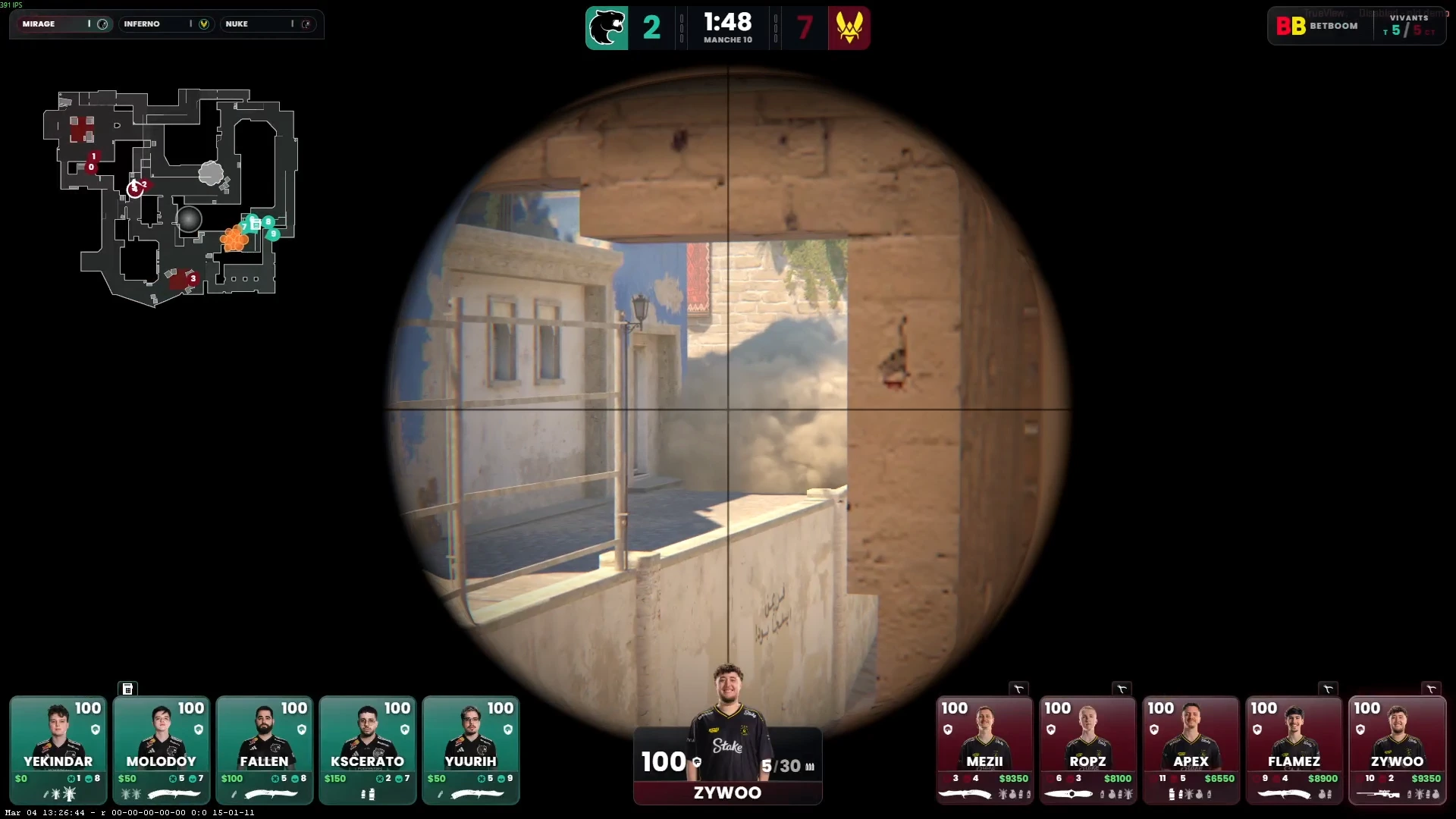
Why Venue Internet Fails You
Shared venue WiFi, overloaded uplinks, IT policies that block ports, a router that reboots at the worst moment — every LAN organizer has a story. The mistake is not that the connection dropped; it is that the broadcast stack assumed it would not. Any tool that needs a cloud service to render overlays, sync match data or validate a session during the show is a failure mode you cannot control.
The Local-First Principle
A LAN-proof broadcast keeps the entire graphics pipeline on machines you own: game data (GSI) flows from CS2 to a local server, overlays render from that local server into OBS as browser sources, and the operator console talks to the same machine. The internet is only needed for one thing — the stream upload — and even that can fail over to a backup connection without touching your graphics.
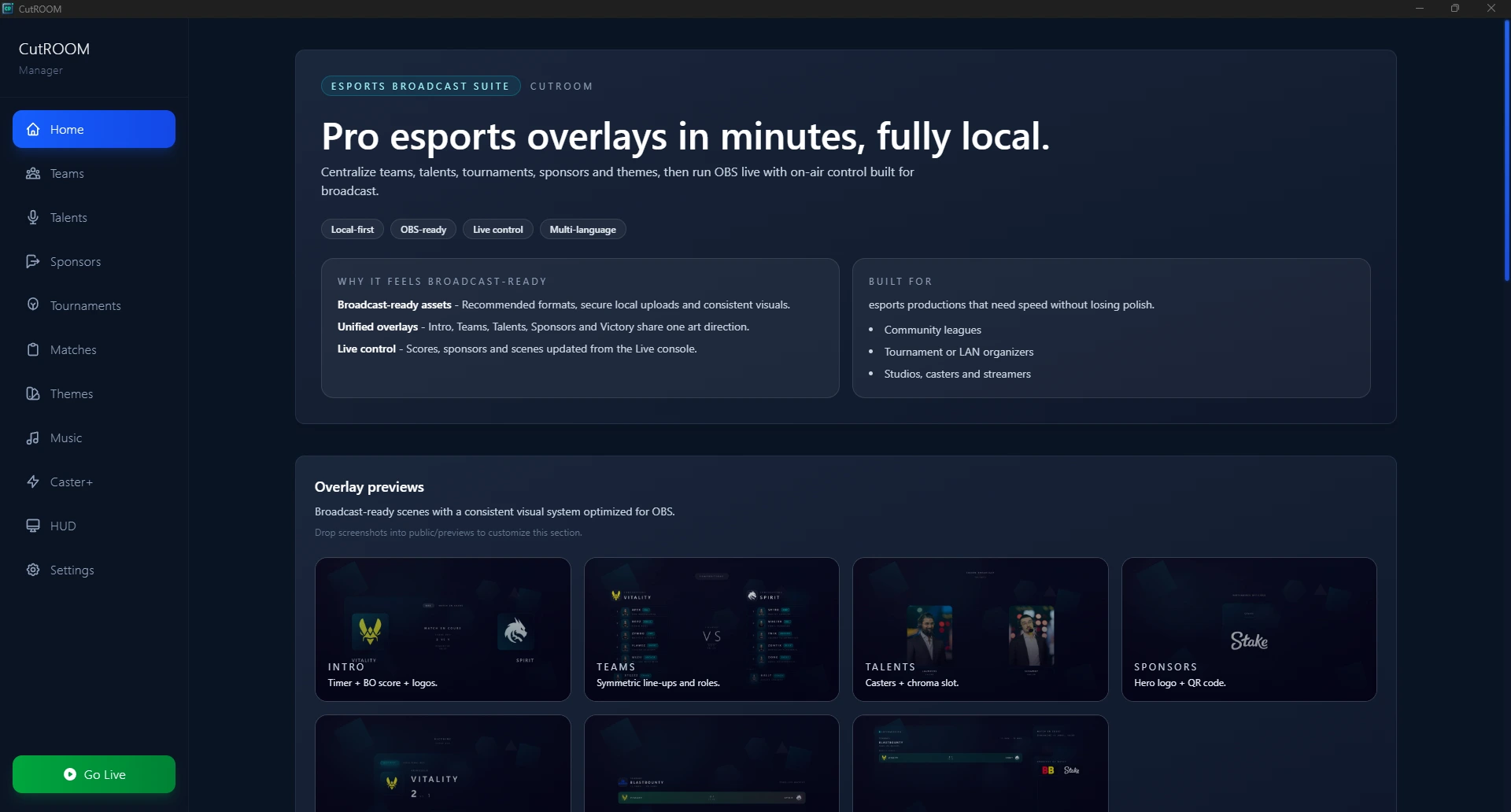
This is how CutROOM is built: HUD, ten scenes, Go Live console, Auto Director and your event data all run locally. If the venue connection dies mid-final, viewers on the stream may buffer — but your show, scoreboard and sponsor graphics never break.
Pre-Event Checklist
- Load everything before doors open — teams, rosters, player photos, sponsor assets, brackets and the match schedule. No show-time downloads.
- Activate licenses in advance — CutROOM's LAN keys exist for exactly this: activate your event machines before the event, then run without needing an account check during the show.
- Test GSI on the actual game PCs — confirm the observer machine feeds data to your production PC over the local network.
- Rehearse the scene flow — intro, veto, teams, live, intermission, victory — with hotkeys or a Stream Deck, before the first match.
- Plan the upload path separately — primary uplink for the stream, bonded or 5G backup if budget allows. Your graphics should not care which one is active.
Multi-PC Event Topology
A typical LAN production splits roles across machines: an observer PC running CS2, a production PC running CutROOM and OBS, and sometimes a stage or replay machine. CutROOM's Caster+ plan covers 5 PCs plus 2 concurrent LAN keys so every seat runs the same licensed setup, and overlays are served over the local network to whichever machine composites the stream.
During the Show
Keep one operator on the Go Live console: scene switching, score and series updates, intermission layouts and sponsor segments all live in one panel. If you are short an observer, Auto Director with camera plans can cut the game while your operator manages the show flow.
Get LAN-Ready
CutROOM was designed around event days like this — see the tournament software overview or start with a plan and rehearse your next LAN with the full scene suite.
Ready to broadcast CS2 like a pro?
Join the tournament organizers and casters who run CutROOM every day.